Highlights
Highlights let you save share, and re-live the best moments from your trip. You can share photos and videos from the round with all the players in the tournament. Two Up puts each highlight in the current session, and makes a highlight reel for each session.
Take a photo or video
- In the tournament, tap the camera button (
) in the bottom right. - Take a photo, or record a video. A video can be 30 seconds or less.
- Tap Use Photo or Use Video.
Two Up shows Uploading Highlight until the upload is complete. All the players get a notification.
The first time, Two Up asks for access to the camera. This permission is required in order to upload and share highlights.
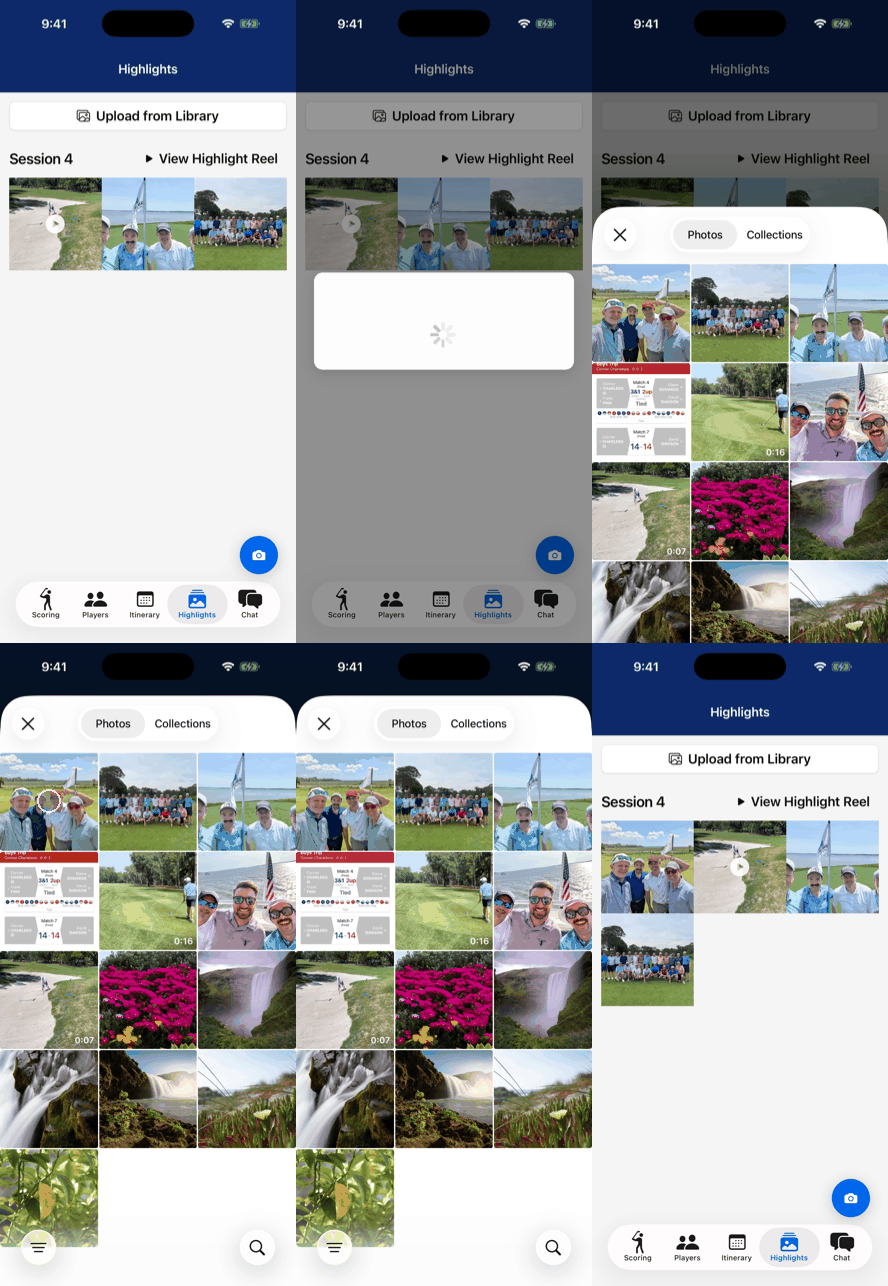
Upload from your library
- Open the Highlights tab.
- Tap Upload from Library (
). - Select a photo or video.
View highlights
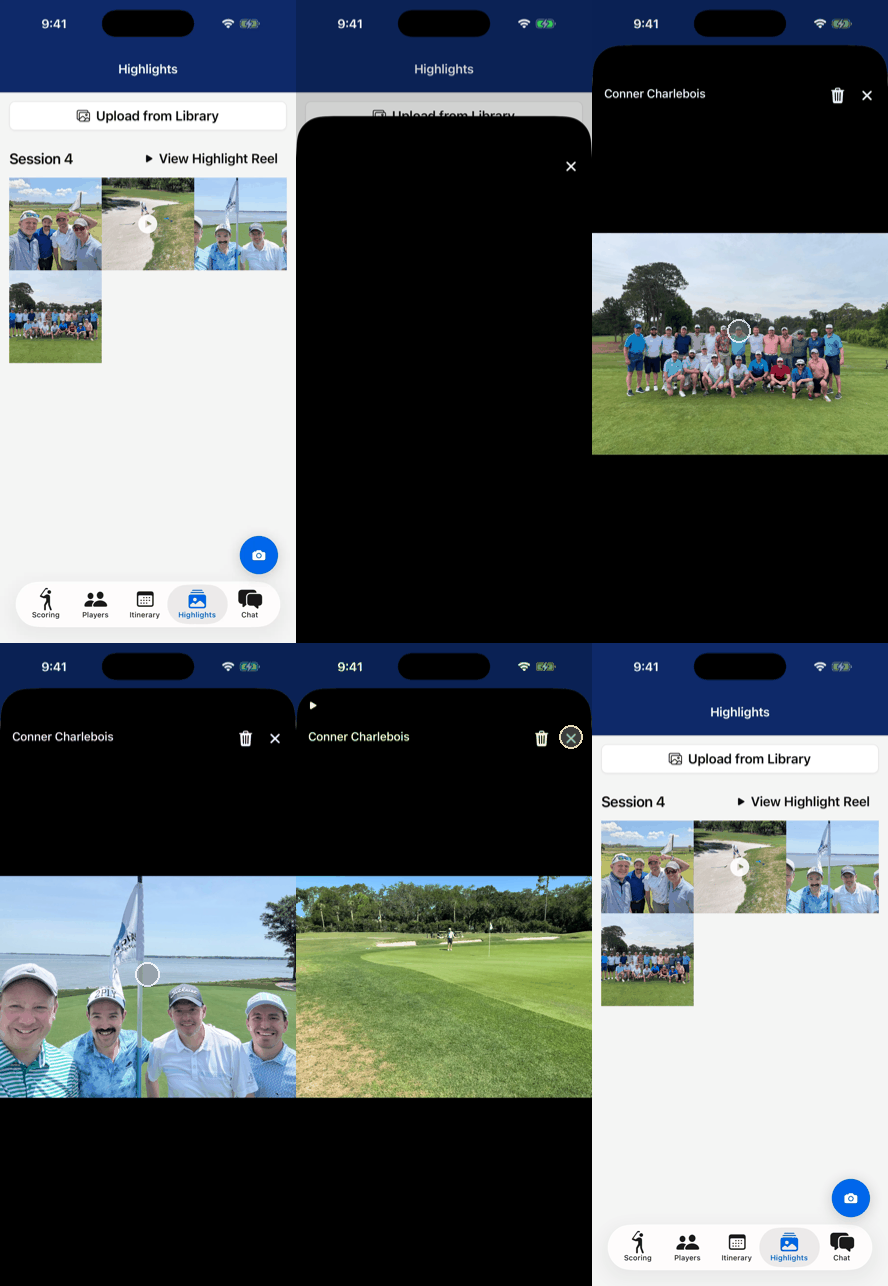
The Highlights tab shows all the highlights, in groups for each session. The newest session is at the top. Highlights from a time with no current session are in the Tournament group.
- Tap a highlight to open it full screen.
- Tap View Highlight Reel (
) to see all the highlights of a session, one after the other. - In the full screen view, tap a photo or swipe to see the next highlight. Videos play automatically.
- Tap the close button (
) to go back.
The Highlights tab shows a number when there are new highlights since your last visit.
When all the matches of the current session are complete, the Scoring tab shows a banner, for example 🎬 Saturday highlights are ready. Tap it to see the highlight reel.
Delete a highlight
You can delete the highlights that you added. A host can delete all highlights.
- Open the highlight full screen.
- Tap the delete button (
) in the top right. - Tap Delete.
You cannot get a deleted highlight back.