Add Matches
After you add your players and sessions, make the matches assign players to them.
Generate matches
Two Up can generate all the matches for you. It makes the correct number of matches for each session, based on the number of players and the pairings of each session.
- On the Edit Tournament screen, tap the wrench button (
). - Tap (Re)Generate Matches (
). - Two Up shows how many matches it made. Tap OK.
- Open a session tab, for example Session 1, to see the matches.
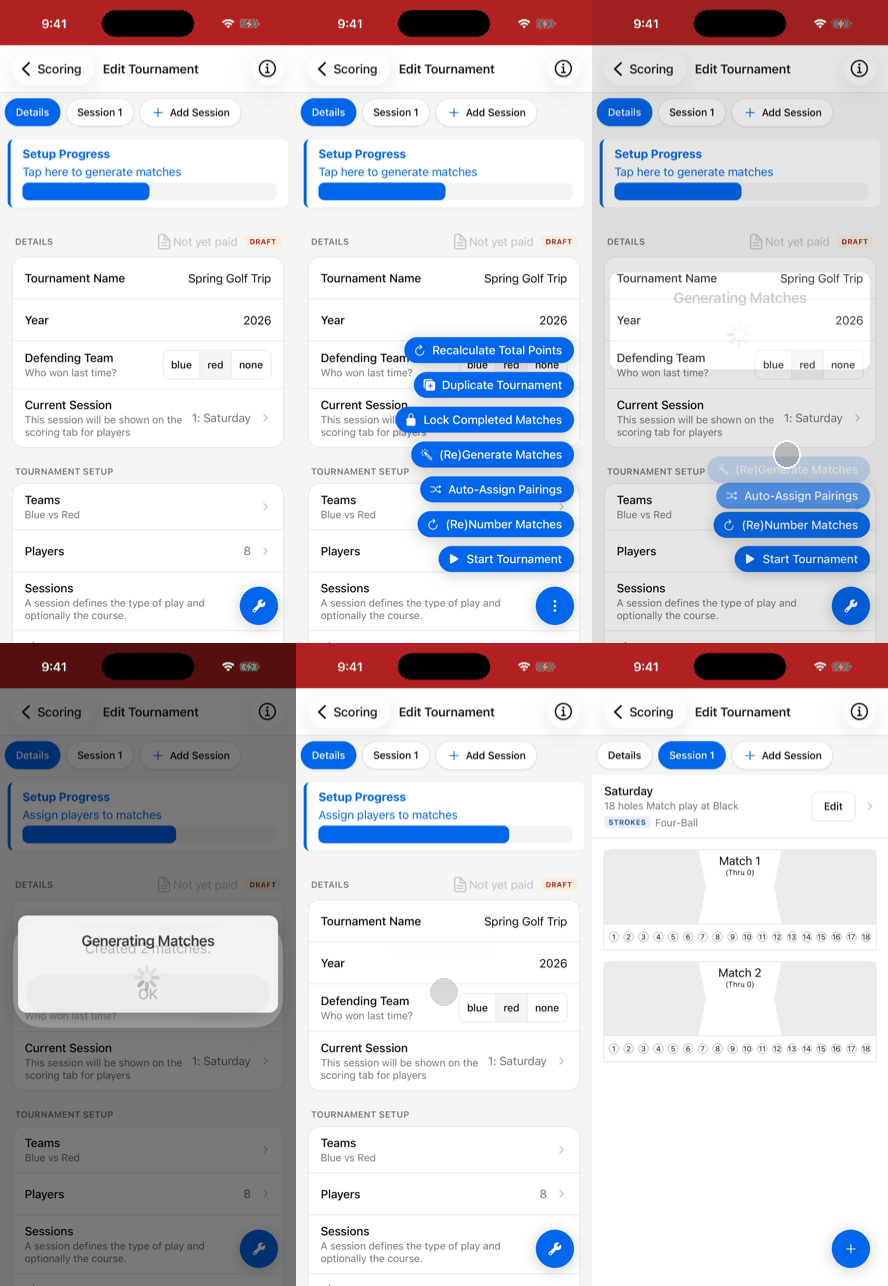
(Re)Generate Matches deletes all the matches in the tournament and makes them again. Then you must assign the players to the matches again. If the tournament already has matches, Two Up asks you before it continues.
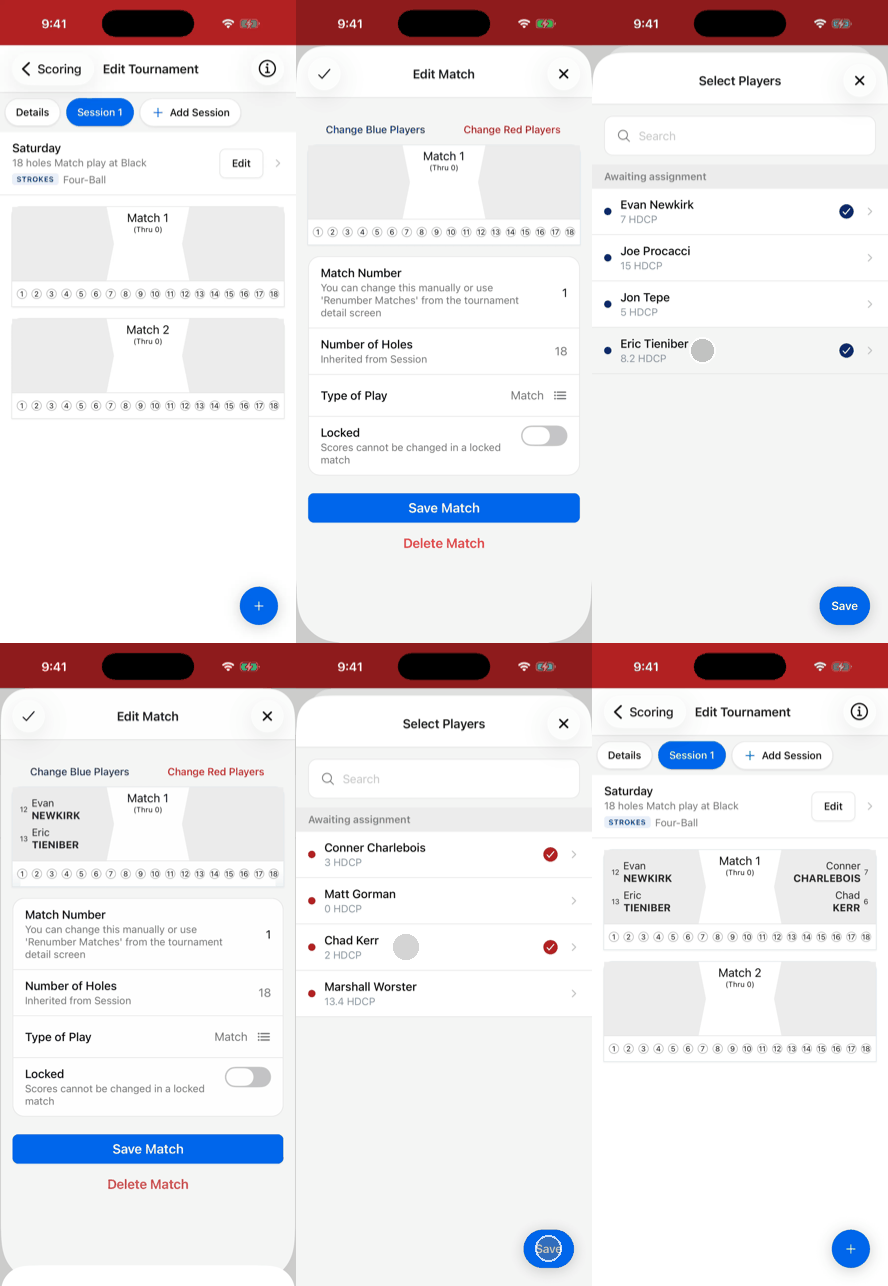
Assign players to a match
- Open the session tab, then tap the match.
- Tap Change Blue Players. Select the players, then tap Save.
- Tap Change Red Players. Select the players, then tap Save.
- Tap Save Match.
The players for each team show in the Awaiting assignment list until you assign them to a match of the session.
To assign players in all the matches at one time, tap the wrench button (
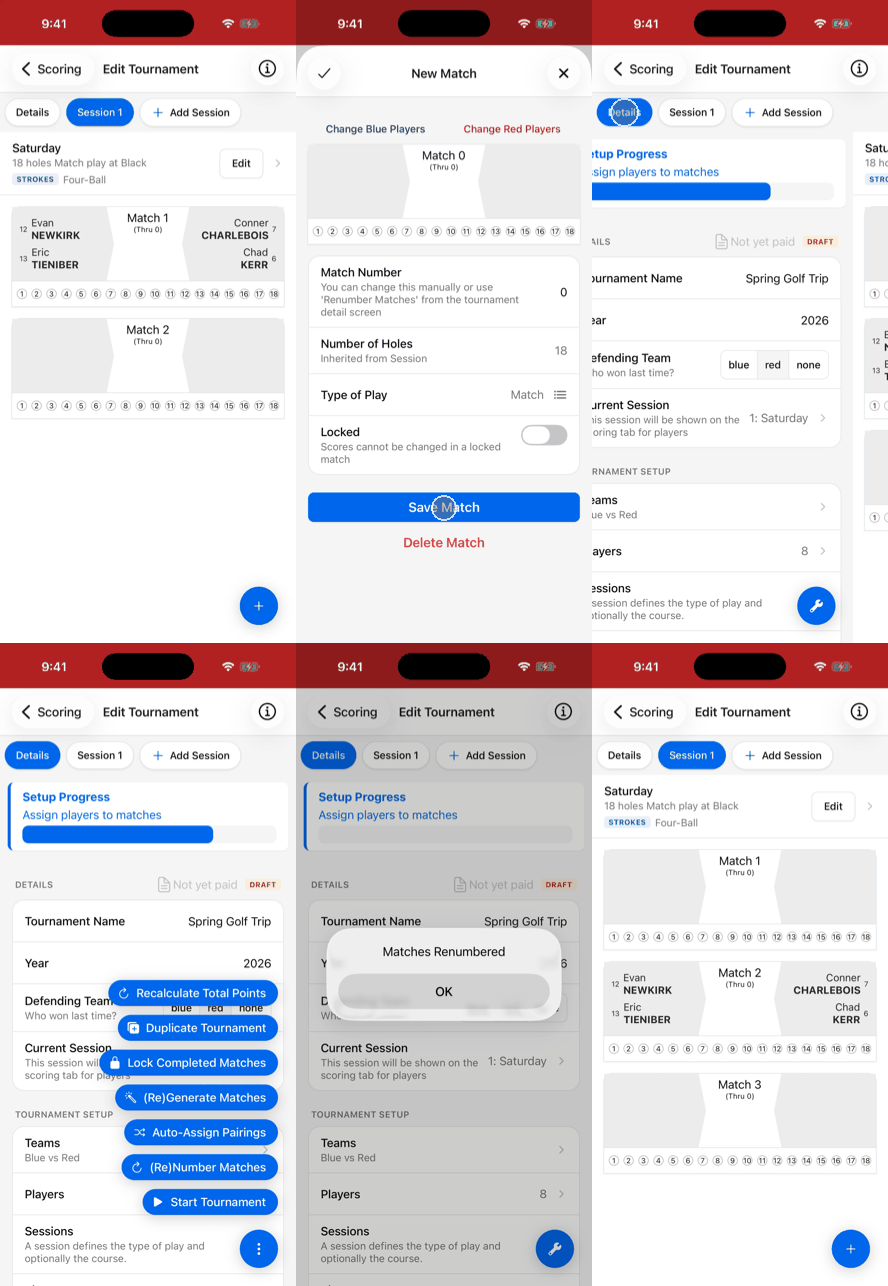
Add a match
- Open the session tab.
- Tap the add button (
) in the bottom right. - Tap Save Match.
A new match gets the number 0. To give all the matches the numbers 1, 2, 3, and so on, tap the wrench button (