Add Players
After you create your tournament, add the players.
Add a player
To open the Edit Tournament screen, tap the edit button (
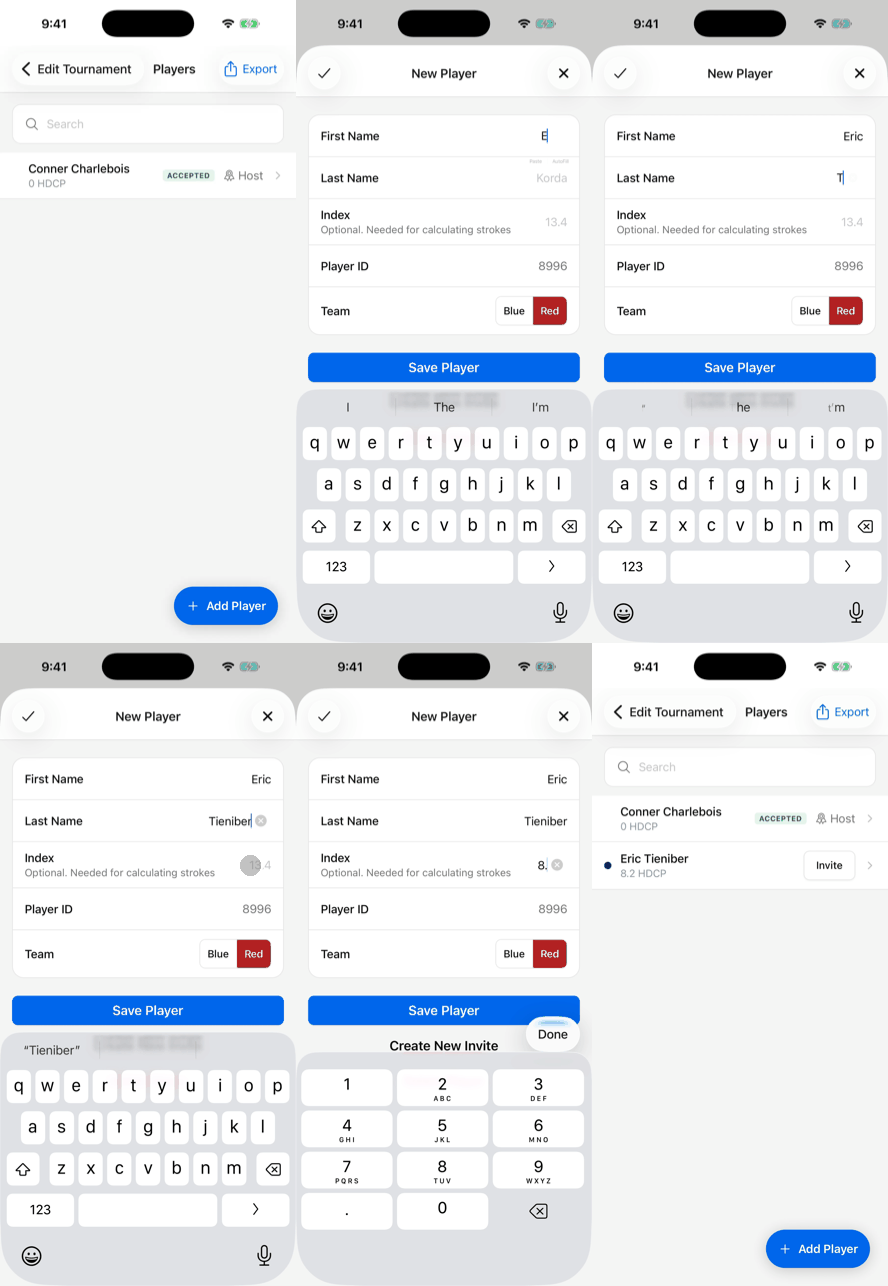
- On the Edit Tournament screen, tap Players.
- Tap the Add Player button (
). - Enter the First Name and the Last Name.
- Optional: Enter the Index. Two Up uses the index to calculate strokes.
- Select the player's Team.
- Tap Save Player.
Invite players
After you add a player, send an invite to the player:
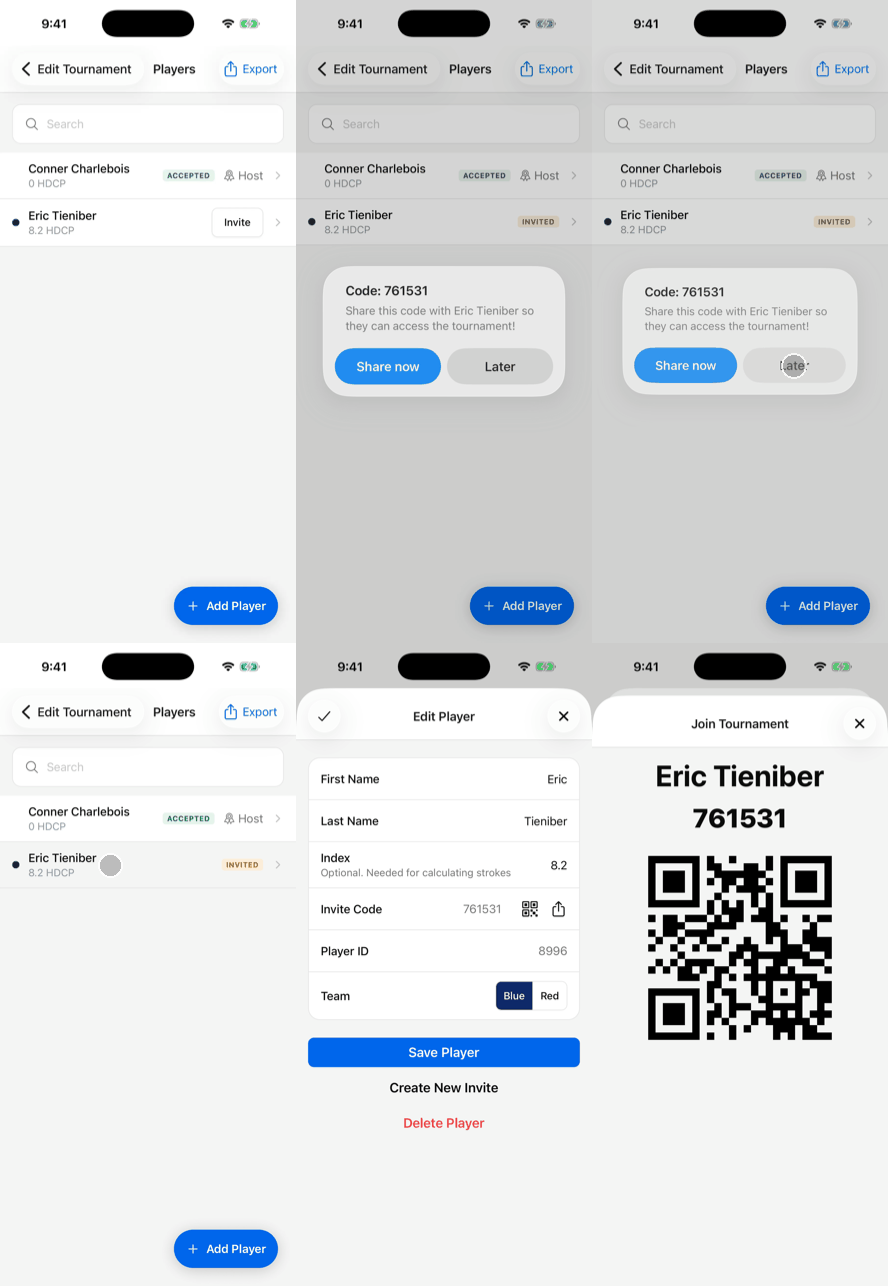
- On the Players screen, tap Invite next to the player.
- Two Up shows the player's 6-digit invite code:
- Tap Share now to send the code in a message.
- Tap Later to send it at a different time.
The status of the player changes to Invited.
To show the invite as a QR code, tap the player, then tap the QR code button (
When the player accepts the invite, the status changes to Accepted.
Add more hosts
A player who accepted the invite can also help you manage the tournament. Tap Make host next to the player. Hosts show the host icon (
Export the invite codes
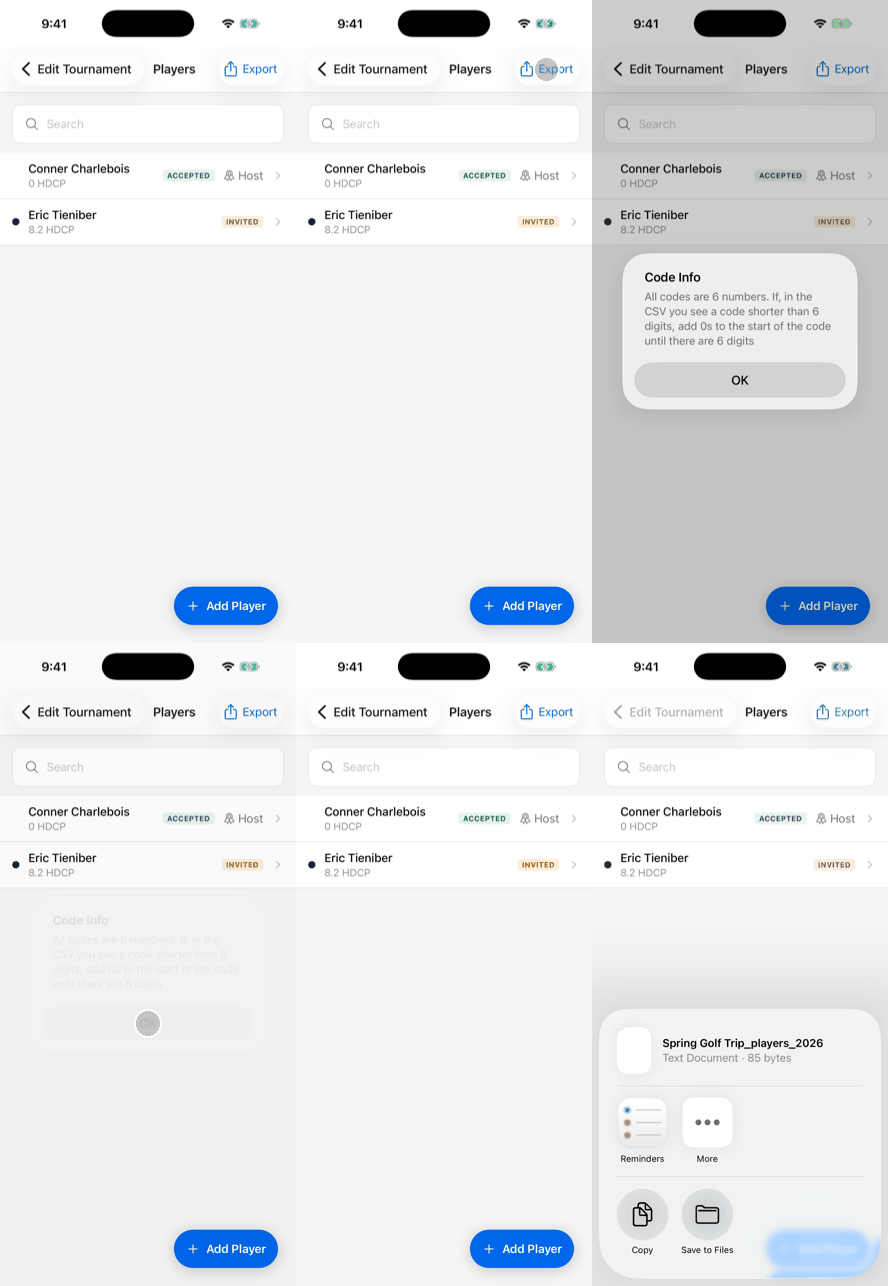
You can export the invite codes for all players in one CSV file. Share the file with your group, or give it to the golf shop for players when they check in.
- On the Players screen, tap the Export button (
) in the top right. - Read the Code Info message, then tap OK.
- Select where to send or save the file.
All codes have 6 digits. If a code in the CSV file has less than 6 digits, add zeros to the start of the code.