Create a Tournament
tip
Set up your player profile before you create a tournament. Then Two Up adds you as a player automatically.
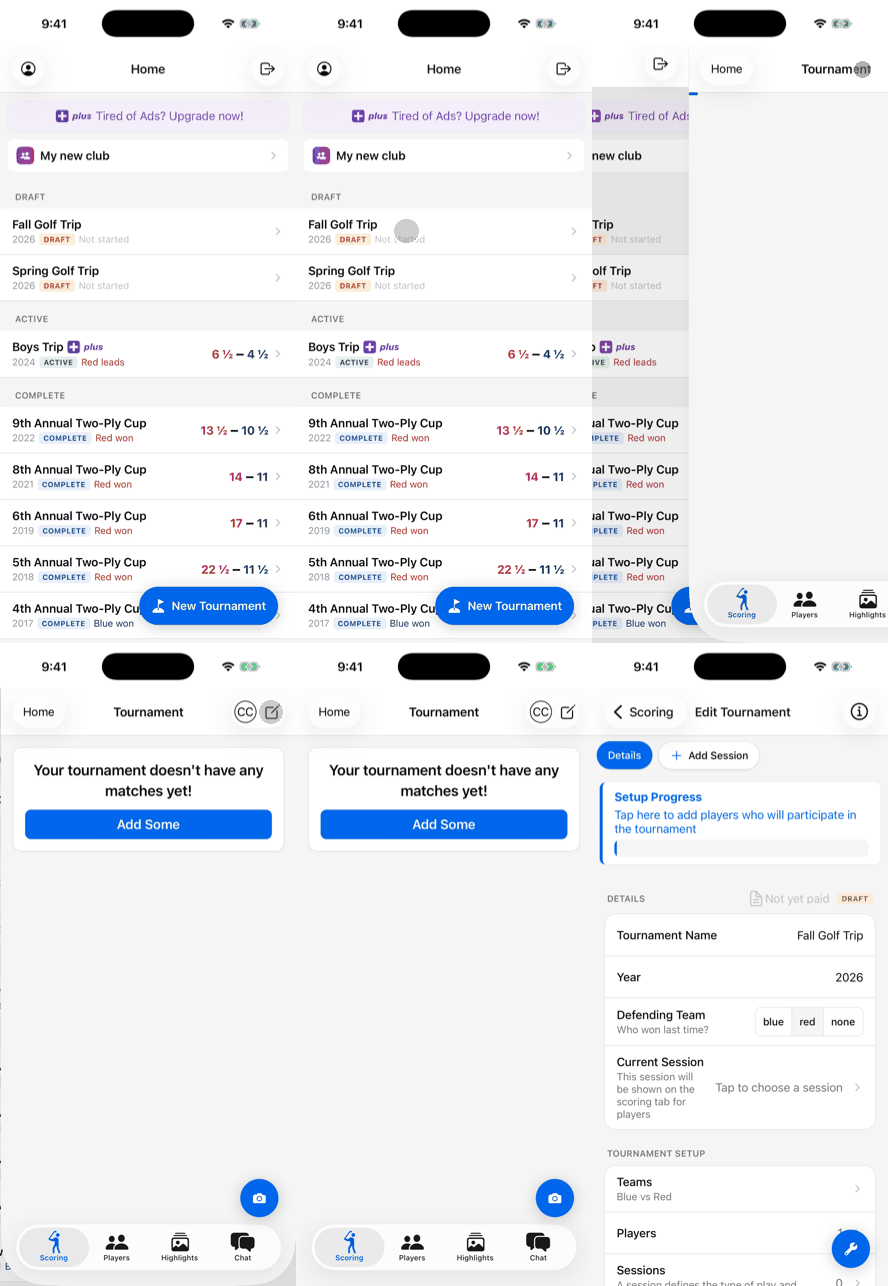
Start a new tournament
tip
If you do not have tournaments yet, tap Create One on the home screen.
- Log in to Two Up.
- On the home screen, tap the New Tournament button (
), then tap Create ( ). - If you have already hosted a tournament, Two Up asks how you want to start:
- Duplicate Existing copies the players, sessions, matches, and courses from a previous tournament.
- Start from Scratch makes an empty tournament.
- If you do not have a player profile, Two Up shows a message:
- Tap Setup now to make your profile first.
- Tap Continue without me to make the tournament without you as a player.
- Enter the Tournament Name.
- Make sure that the Year is correct.
- Optional: In Defending Team, select the team that won last time.
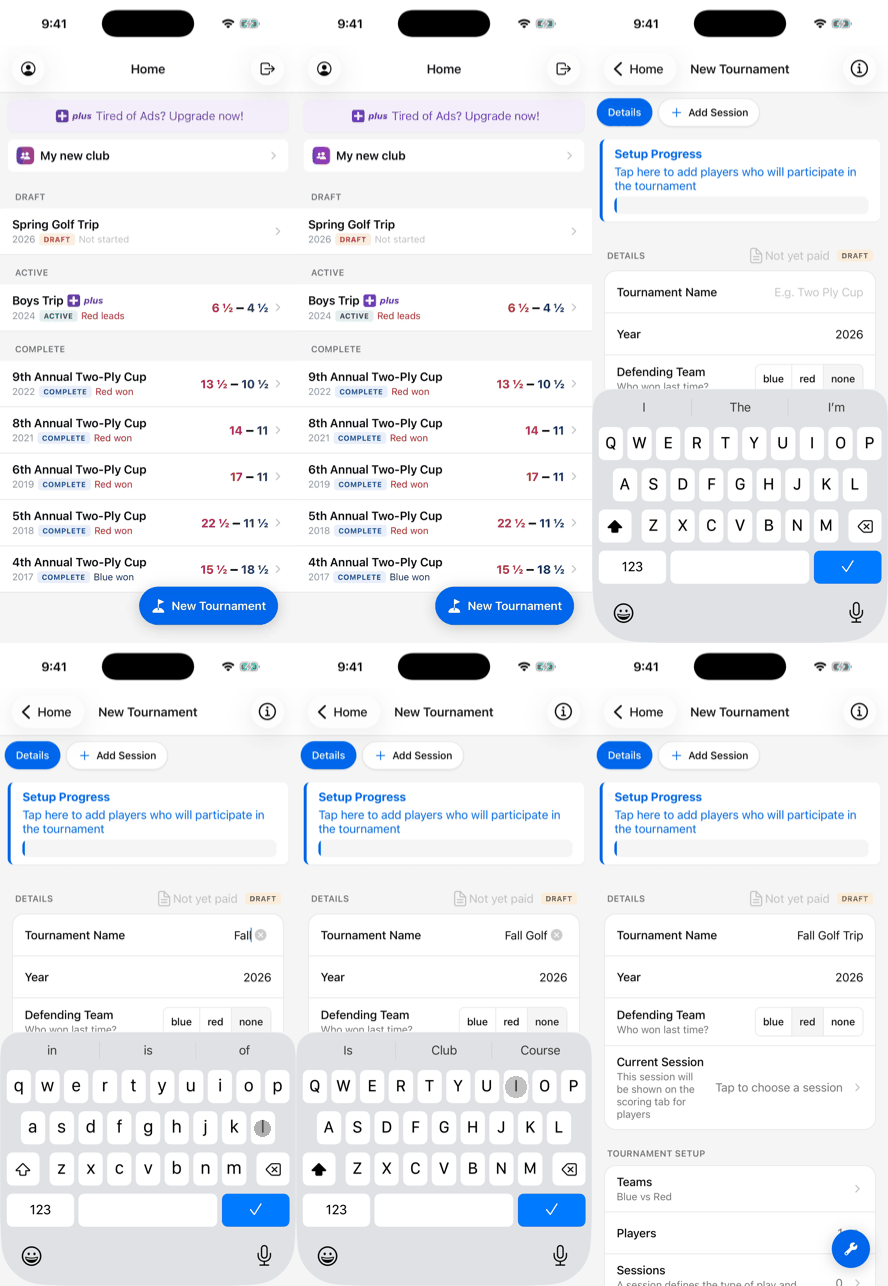
Two Up saves the tournament as a Draft immediately. All changes save automatically.
Continue the setup
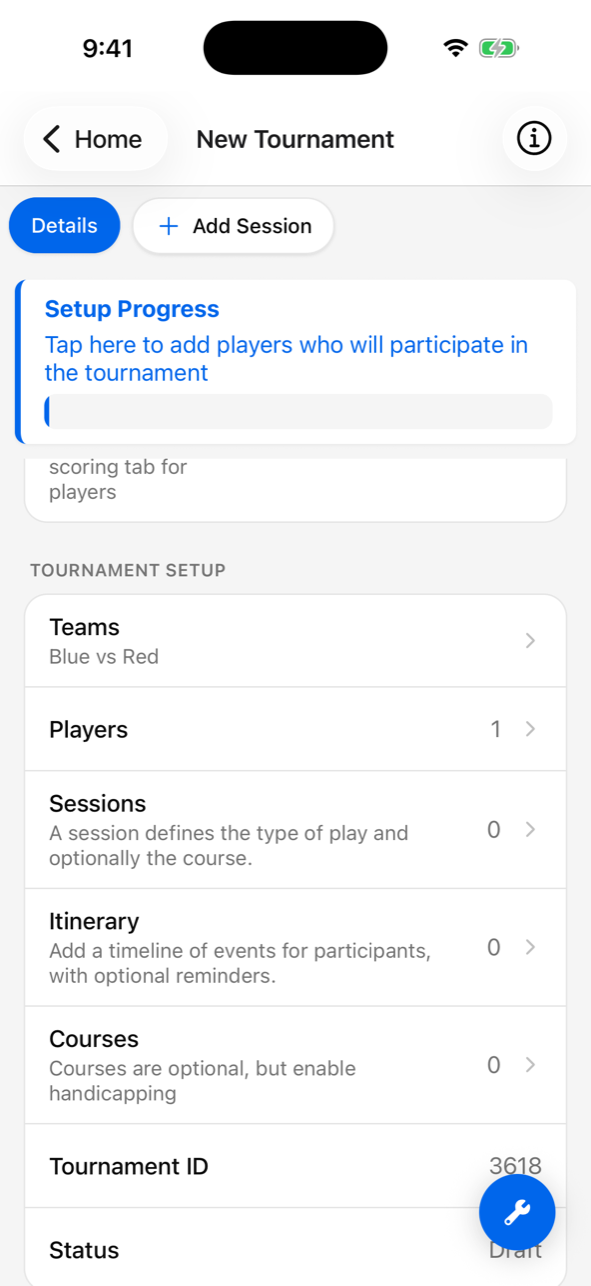
The Setup Progress card shows the next step. Tap the card to go to that step.
Use the Tournament Setup section to add the teams, players, sessions, itinerary, and courses.
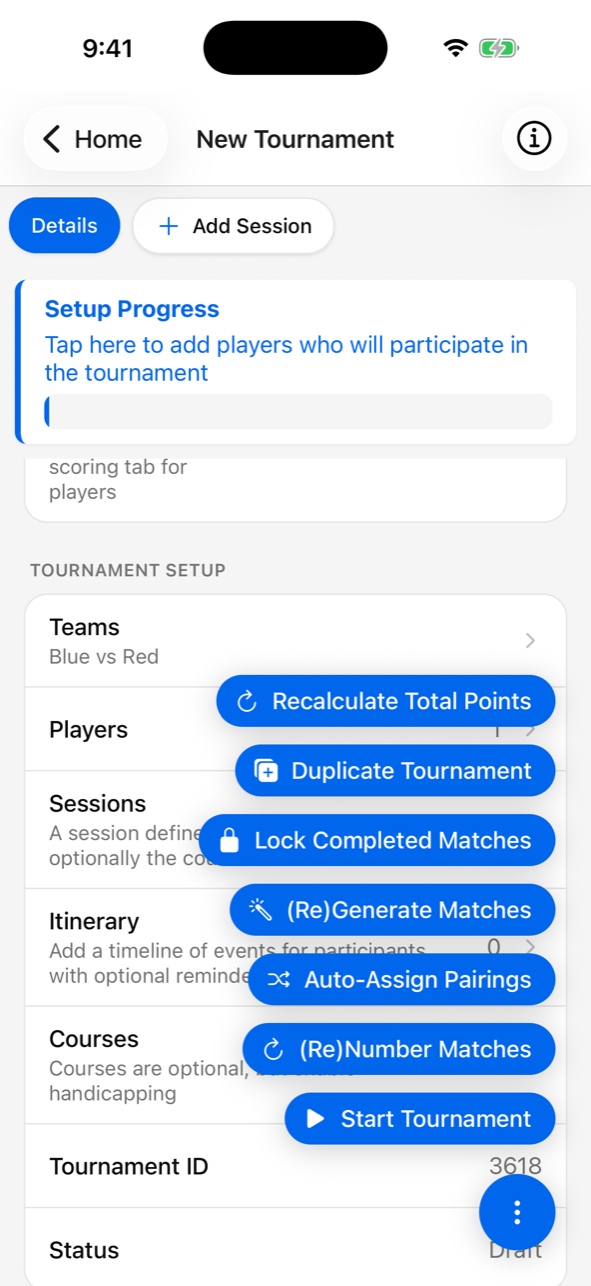
The wrench button (
Edit a tournament
- On the home screen, tap the tournament. Draft tournaments show in the Draft section.
- Two Up opens the tournament page. Tap the edit button (
) in the top right. - The Edit Tournament screen opens. It has the same fields as the New Tournament screen.